<?xml version="1.0" encoding="utf-8"?>
<feed xmlns="http://www.w3.org/2005/Atom">
  <title>chris-collins.io</title>
  
  <subtitle>Mac IT Fun Times</subtitle>
  <link href="/atom.xml" rel="self"/>
  
  <link href="http://chris-collins.io/"/>
  <updated>2019-03-31T04:16:20.000Z</updated>
  <id>http://chris-collins.io/</id>
  
  <author>
    <name>Christopher Collins</name>
    
  </author>
  
  <generator uri="http://hexo.io/">Hexo</generator>
  
  <entry>
    <title>Script For User Self Enrolling In Jamf Pro Testing Group</title>
    <link href="http://chris-collins.io/2018/04/05/Script-For-User-Self-Enrolling-In-Jamf-Pro-Testing-Group/"/>
    <id>http://chris-collins.io/2018/04/05/Script-For-User-Self-Enrolling-In-Jamf-Pro-Testing-Group/</id>
    <published>2018-04-05T15:24:17.000Z</published>
    <updated>2019-03-31T04:16:20.000Z</updated>
    
    <content type="html"><![CDATA[<p>Recently someone asked me how you could handle getting users who are willing to test new software/policies/config profiles, etc, to self enroll their own computers without needing an administrator’s intervention or giving a user access to the Jamf Pro Server.</p><p>I happened to have a script I wrote a while ago that allows a user to do just this. <a id="more"></a> In short you use an extension attribute with pre-populated choices of groups they might want to add their computer to. The script pulls these values live every time via the API so you don’t have modify the script every time you want to modify the list of groups the user can choose.</p><p>The script then pops up a Tkinter window that presents the user with a drop down list of those choices from the extension attribute, the user makes their choice, and the choice is written back to their computer’s inventory record in the Jamf server.</p><p>From there you can create smart groups with criteria that matches specific values in that extension attribute and then scope to machines that fall into those groups.</p><p>I’ve added the script and basic directions to github. You can find it <a href="https://github.com/christophercollins/casper_api_scripts/tree/master/jamf_testing_group_enroll" target="_blank" rel="noopener">here:</a></p>]]></content>
    
    <summary type="html">
    
      &lt;p&gt;Recently someone asked me how you could handle getting users who are willing to test new software/policies/config profiles, etc, to self enroll their own computers without needing an administrator’s intervention or giving a user access to the Jamf Pro Server.&lt;/p&gt;
&lt;p&gt;I happened to have a script I wrote a while ago that allows a user to do just this.
    
    </summary>
    
    
      <category term="jamf" scheme="http://chris-collins.io/tags/jamf/"/>
    
      <category term="casper" scheme="http://chris-collins.io/tags/casper/"/>
    
      <category term="extension attributes" scheme="http://chris-collins.io/tags/extension-attributes/"/>
    
  </entry>
  
  <entry>
    <title>Using Terminal At macOS Setup Assistant</title>
    <link href="http://chris-collins.io/2018/03/15/Using-Terminal-At-macOS-Setup-Assistant/"/>
    <id>http://chris-collins.io/2018/03/15/Using-Terminal-At-macOS-Setup-Assistant/</id>
    <published>2018-03-15T14:36:19.000Z</published>
    <updated>2019-03-31T04:16:20.000Z</updated>
    
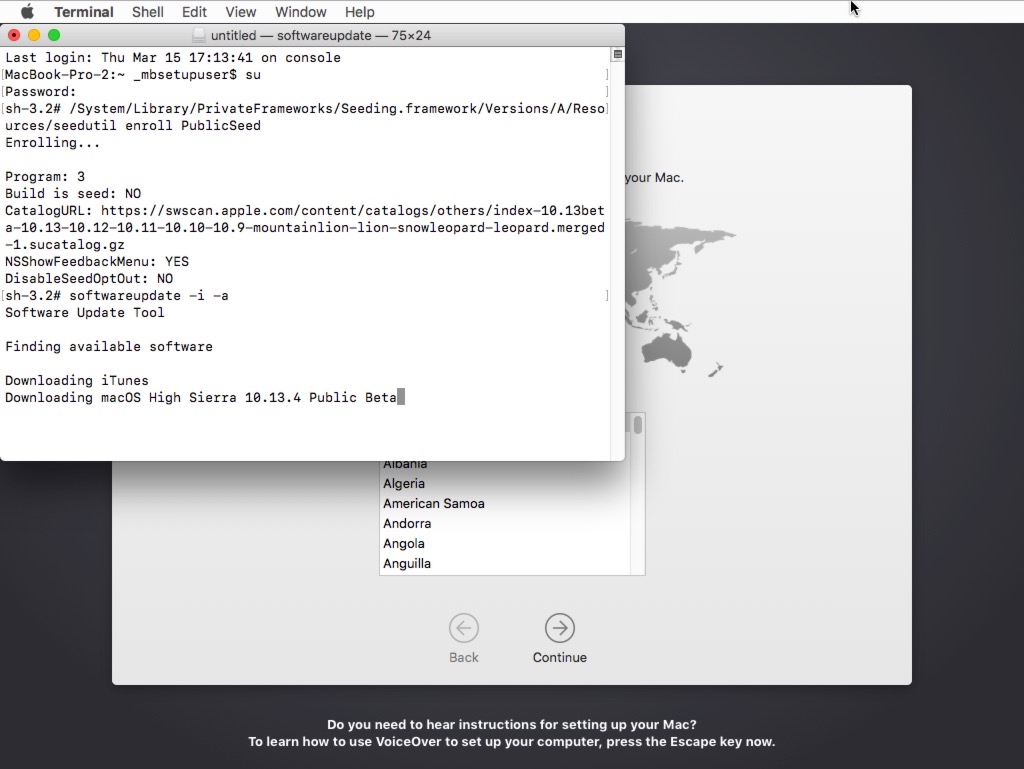
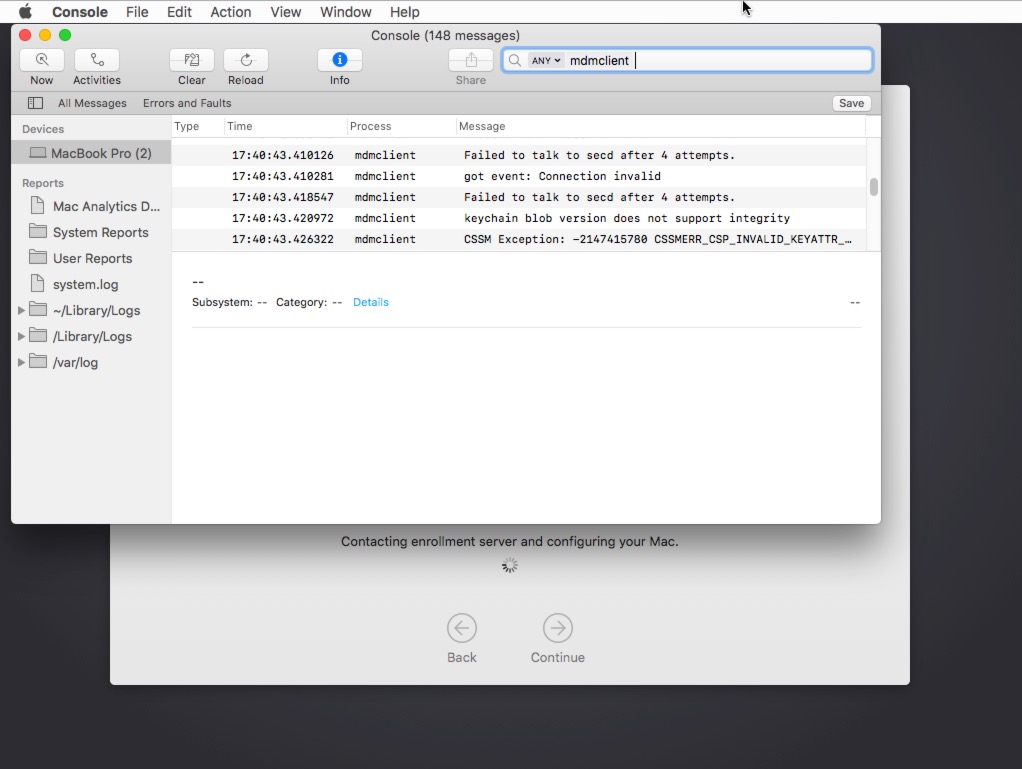
    <content type="html"><![CDATA[<p>Recently I became aware that you can open Terminal (and Console) from the macOS Setup Assistant via keyboard shortcuts.</p><p>When you are in Setup Assistant, you can open Terminal or Console by pressing:</p><p><code>CTL + OPTION + CMD + T</code>  (for Terminal)<br><code>CTL + OPTION + CMD + C</code>  (for Console)</p><p>Terminal will then launch as <strong>_mbsetupuser</strong> which is the user that Setup Assistant runs as.</p><p>Now that we have Terminal launched, what can we do with it?</p><a id="more"></a><p>Pretty much anything that doesn’t require elevated privileges.</p><p>The most common use would be to get the IP address of the machine while it is at Setup Assistant using either <code>ifconfig</code> or <code>networksetup</code>.</p><p>Since Terminal is launching as <strong>_mbsetupuser</strong>, we can’t do anything that requires root level permissions. But if we enable the root user ahead of time, we can elevate our permissions to do things that are more interesting.</p><h3 id="Enabling-root-on-a-machine-that-hasn’t-gone-through-setup-assistant"><a href="#Enabling-root-on-a-machine-that-hasn’t-gone-through-setup-assistant" class="headerlink" title="Enabling root on a machine that hasn’t gone through setup assistant"></a>Enabling root on a machine that hasn’t gone through setup assistant</h3><ol><li><a href="https://support.apple.com/en-us/HT201573" target="_blank" rel="noopener">Start up</a> your machine into single-user mode.</li><li>Mount the boot drive as read/write: <code>/sbin/mount -uw /</code></li><li>Enable opendirectory: <code>launchctl load /System/Library/LaunchDaemons/com.apple.opendirectoryd.plist</code></li><li>Enable root password: <code>passwd root</code></li><li>Reboot: <code>reboot</code></li></ol><p>Now when we start up the machine and it is at the Setup Assistant, when we launch Terminal then change our user from <strong>_mbsetupuser</strong> to <strong>root</strong> with <code>su</code>.</p><p>One interesting thing we could do with this is to take an unconfigured machine with a release version of macOS and upgrade it to a beta version of macOS before it has been configured so, for instance, we could test upcoming changes in DEP enrollment.</p><p>Rich Trouton has a <a href="https://derflounder.wordpress.com/2018/01/06/setting-your-mac-to-receive-macos-beta-updates-using-seedutil/" target="_blank" rel="noopener">very nicely detailed article on using seedutil in High Sierra</a> to enroll a machine into Apple’s macOS beta software update channel that is worth a read. Here I’ll quickly cover how to enroll our un-configured Mac to receive betas from the public beta feed. Assuming you’ve already enabled root in single user mode (and that you are a member of the public beta program):</p><ol><li>Open Terminal at Setup Assistant</li><li>Elevate yourself to root: <code>su</code></li><li>Enroll in the public beta feed: <code>/System/Library/PrivateFrameworks/Seeding.framework/Versions/A/Resources/seedutil enroll PublicSeed</code></li><li>Run softwareupdate to install all updates: <code>softwareupdate -i -a</code></li><li>Reboot: <code>reboot</code></li></ol><img src="/2018/03/15/Using-Terminal-At-macOS-Setup-Assistant/betasoftwareupdate.jpg"><h2 id="Using-Console"><a href="#Using-Console" class="headerlink" title="Using Console"></a>Using Console</h2><p>You can also launch Console as noted above. One reason you might want to do this is troubleshooting by monitoring the logs for the mdmclient process as you attempt to enroll the machine through DEP, tailing the Jamf log or whatever bootstrap processes you have that might get triggered before the machine has moved passed the Setup Assistant.</p><img src="/2018/03/15/Using-Terminal-At-macOS-Setup-Assistant/console.jpg">]]></content>
    
    <summary type="html">
    
      &lt;p&gt;Recently I became aware that you can open Terminal (and Console) from the macOS Setup Assistant via keyboard shortcuts.&lt;/p&gt;
&lt;p&gt;When you are in Setup Assistant, you can open Terminal or Console by pressing:&lt;/p&gt;
&lt;p&gt;&lt;code&gt;CTL + OPTION + CMD + T&lt;/code&gt;  (for Terminal)&lt;br&gt;&lt;code&gt;CTL + OPTION + CMD + C&lt;/code&gt;  (for Console)&lt;/p&gt;
&lt;p&gt;Terminal will then launch as &lt;strong&gt;_mbsetupuser&lt;/strong&gt; which is the user that Setup Assistant runs as.&lt;/p&gt;
&lt;p&gt;Now that we have Terminal launched, what can we do with it?&lt;/p&gt;
    
    </summary>
    
    
      <category term="macos" scheme="http://chris-collins.io/tags/macos/"/>
    
      <category term="setup assistant" scheme="http://chris-collins.io/tags/setup-assistant/"/>
    
      <category term="terminal" scheme="http://chris-collins.io/tags/terminal/"/>
    
      <category term="dep" scheme="http://chris-collins.io/tags/dep/"/>
    
  </entry>
  
  <entry>
    <title>Hiding Jamf Pro&#39;s Admin Interface Externally In A Single Tomcat Server Setup</title>
    <link href="http://chris-collins.io/2018/03/13/Hiding-JAMF-Pro-s-Admin-Interface-Externally-In-A-Single-Tomcat-Server-Setup/"/>
    <id>http://chris-collins.io/2018/03/13/Hiding-JAMF-Pro-s-Admin-Interface-Externally-In-A-Single-Tomcat-Server-Setup/</id>
    <published>2018-03-13T17:55:37.000Z</published>
    <updated>2019-03-31T04:16:20.000Z</updated>
    
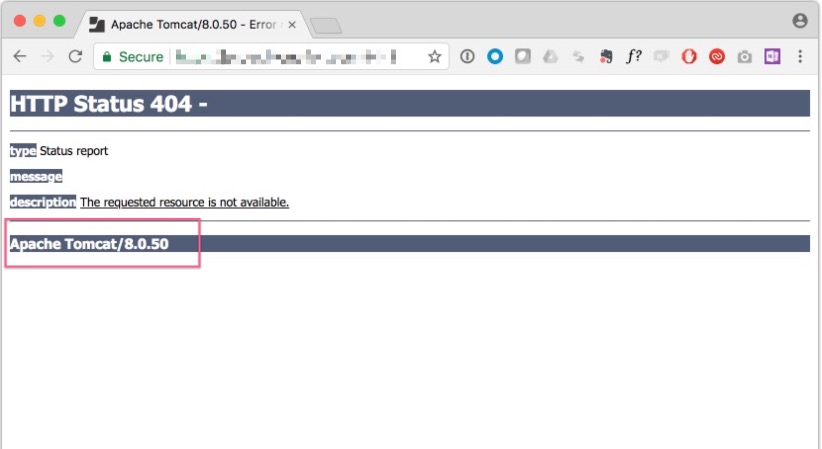
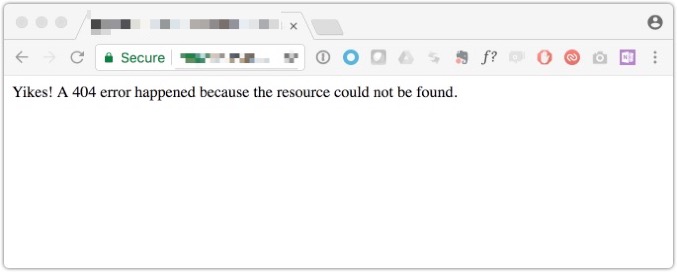
    <content type="html"><![CDATA[<p>In some Jamf environments the Tomcat webapp might need to be hosted on a single machine that is both accessible from inside an organization as well as externally on the public internet.</p><p>But what if you don’t want the Jamf admin console visible to the external world but still want to allow your clients to check in, enroll, or access the API? If you were in a clustered environment you could easily change the Limited Access settings for your externally facing webapp to something other than “Full Access”, but this isn’t possible on a single server setup.</p><a id="more"></a><p>At our org I found myself in this situation with a development Jamf server that I wanted to be available both internally and externally but only use one server in AWS to keep costs reasonable. The server would be behind an AWS load balancer which would handle HTTPS termination and limit exposure to the outside world.</p><p>I decided the most obvious way to determine an internal machine vs an external one would be based on IP address. So, is it possible to filter connections to Tomcat based on IP? <strong>It is!</strong> To accomplish this we need to use a Tomcat filter.</p><p><strong>Two caveats:</strong> <em>This has only been run in production with Jamf Pro 9.x though it seems to work fine with version 10.x with some slight modifications which I’ll note below. Also these modifications can be overwritten during Jamf Pro updates so you will need to reapply them each time.</em></p><p>Tomcat provides many filtering options but the one we want is “Remote Address Filter” which <a href="https://tomcat.apache.org/tomcat-8.0-doc/config/filter.html" target="_blank" rel="noopener">according to the documention</a>:</p><blockquote><p>“allows you to compare the IP address of the client that submitted this request against one or more regular expressions, and either allow the request to continue or refuse to process the request from this client.”</p></blockquote><p>For this to work we need a regular expression that will match any IPs in the standard private IP ranges of:</p><ul><li>10.0.0.0 to 10.255.255.255</li><li>172.16.0.0 to 172.31.255.255</li><li>192.168.0.0 to 192.168.255.255</li></ul><p>I wrote this simple regex that should capture all those IP addresses.</p><script src="//gist.github.com/ccadef6ef402374f6e7084c2e375b6c7.js?file=Regex.txt"></script><p>Next we need to pair the regex with a Tomcat filter that is set to accept connections from IPs that are matched:</p><p>Use this for Jamf Pro version 9.x:<br><script src="//gist.github.com/ccadef6ef402374f6e7084c2e375b6c7.js?file=Custom-RemoteAddrFilter-v9.xml"></script></p><p>Use this for Jamf Pro version 10.x<br><script src="//gist.github.com/ccadef6ef402374f6e7084c2e375b6c7.js?file=Custom-RemoteAddrFilter-v10.xml"></script></p><p>You’ll then need to insert that xml into the webapp’s <code>web.xml</code> file (including after every upgrade) at <code>/usr/local/jss/tomcat/webapps/ROOT/WEB-INF/web.xml</code></p><p>Stop Tomcat and place the filter xml code in the file. In my case I inserted it under this section in the file (for both v9 and v10):<br><figure class="highlight xml"><table><tr><td class="gutter"><pre><span class="line">1</span><br><span class="line">2</span><br><span class="line">3</span><br><span class="line">4</span><br></pre></td><td class="code"><pre><span class="line"><span class="tag">&lt;<span class="name">servlet-mapping</span>&gt;</span></span><br><span class="line">  <span class="tag">&lt;<span class="name">servlet-name</span>&gt;</span>LegacyRestRedirectServlet<span class="tag">&lt;/<span class="name">servlet-name</span>&gt;</span></span><br><span class="line">  <span class="tag">&lt;<span class="name">url-pattern</span>&gt;</span>*.rest<span class="tag">&lt;/<span class="name">url-pattern</span>&gt;</span></span><br><span class="line"><span class="tag">&lt;/<span class="name">servlet-mapping</span>&gt;</span></span><br></pre></td></tr></table></figure></p><p>Restart Tomcat and try to hit your Jamf Pro’s server from a public IP:</p><!--Insert pic of blocked admin console here--><img src="/2018/03/13/Hiding-JAMF-Pro-s-Admin-Interface-Externally-In-A-Single-Tomcat-Server-Setup/tomcat404error.jpg"><p><strong>Awesome!</strong> <em>But wait</em>…the default Tomcat error page is not great and it’s also showing what version of Tomcat we are running which could give someone looking to exploit known weaknesses in certain versions of Tomcat an easier time of discovering if we are vulnerable. <em>(Hat tip to <a href="https://www.rderewianko.com" target="_blank" rel="noopener">Ross Derewianko</a> who pointed out this security issue to me a while back.)</em></p><p>Luckily we can set a custom 404 page in Tomcat for this. It’ll just take a bit of extra work.</p><p>First, we’ll need to create an error page and place it at the root of our Tomcat webapp at <code>/usr/local/jss/tomcat/webapps/ROOT/</code>, and for this example I will call it <code>404.jsp</code><br><script src="//gist.github.com/ccadef6ef402374f6e7084c2e375b6c7.js?file=404.jsp"></script></p><p>Next, we’ll need to tell Tomcat that we want to use the <code>404.jsp</code> file as the 404 page when someone tries to reach our admin console from a denied IP address. To do this we’ll need to edit a different web.xml file, which can be found at: <code>/usr/local/jss/tomcat/conf/web.xml</code></p><p>Edit this file and search for <code>welcome-file-list</code> and beneath this section, add:<br><script src="//gist.github.com/ccadef6ef402374f6e7084c2e375b6c7.js?file=error_code.xml"></script></p><p>With that done, now restart Tomcat, and when you try to visit the admin login from a denied IP address, you should no longer see the generic Tomcat error page but the one you just created.</p><img src="/2018/03/13/Hiding-JAMF-Pro-s-Admin-Interface-Externally-In-A-Single-Tomcat-Server-Setup/404page.jpg">]]></content>
    
    <summary type="html">
    
      &lt;p&gt;In some Jamf environments the Tomcat webapp might need to be hosted on a single machine that is both accessible from inside an organization as well as externally on the public internet.&lt;/p&gt;
&lt;p&gt;But what if you don’t want the Jamf admin console visible to the external world but still want to allow your clients to check in, enroll, or access the API? If you were in a clustered environment you could easily change the Limited Access settings for your externally facing webapp to something other than “Full Access”, but this isn’t possible on a single server setup.&lt;/p&gt;
    
    </summary>
    
    
      <category term="jamf" scheme="http://chris-collins.io/tags/jamf/"/>
    
      <category term="casper" scheme="http://chris-collins.io/tags/casper/"/>
    
      <category term="tomcat" scheme="http://chris-collins.io/tags/tomcat/"/>
    
  </entry>
  
</feed>